
The Amazon Fire TV Stick is one of the most popular devices for watching IPTV — it’s affordable, plugs straight into any TV’s HDMI port, and supports a wide range of IPTV player apps. If you’ve got a Firestick and an IPTV subscription, you can be streaming live TV, movies, and sports within minutes.
New to IPTV? Read our What Is IPTV? guide before getting started.
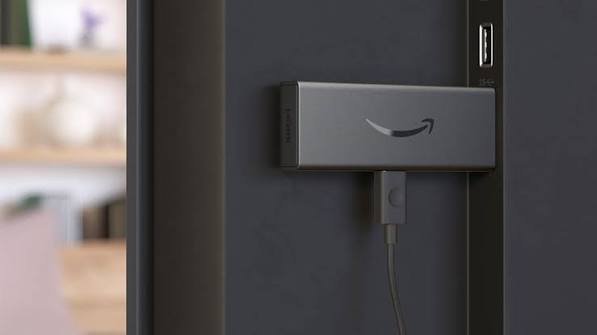
Why Firestick Is One of the Best Devices for IPTV
Firestick has become a go-to choice for IPTV viewers for a few practical reasons:
- Affordable — one of the cheapest streaming devices on the market, with no monthly hardware fees
- Easy setup — plugs directly into your TV’s HDMI port, no technician or installation required
- Portable — small enough to bring with you and use on any TV with an HDMI input
- Supports 4K — newer Firestick models handle 4K streaming smoothly with a strong enough connection
- Compatible with most IPTV apps — runs all the major IPTV player apps available on the Amazon Appstore or via sideloading
What You’ll Need Before Installing IPTV
Before you start, make sure you have:
- A Firestick device — any current generation works
- A stable internet connection — 25 Mbps or higher recommended for smooth HD/4K playback
- An active IPTV subscription — with your login details ready
- An IPTV player app — installed on your Firestick (covered in Step 1 below)
- Your login credentials — provided by your IPTV service after subscribing
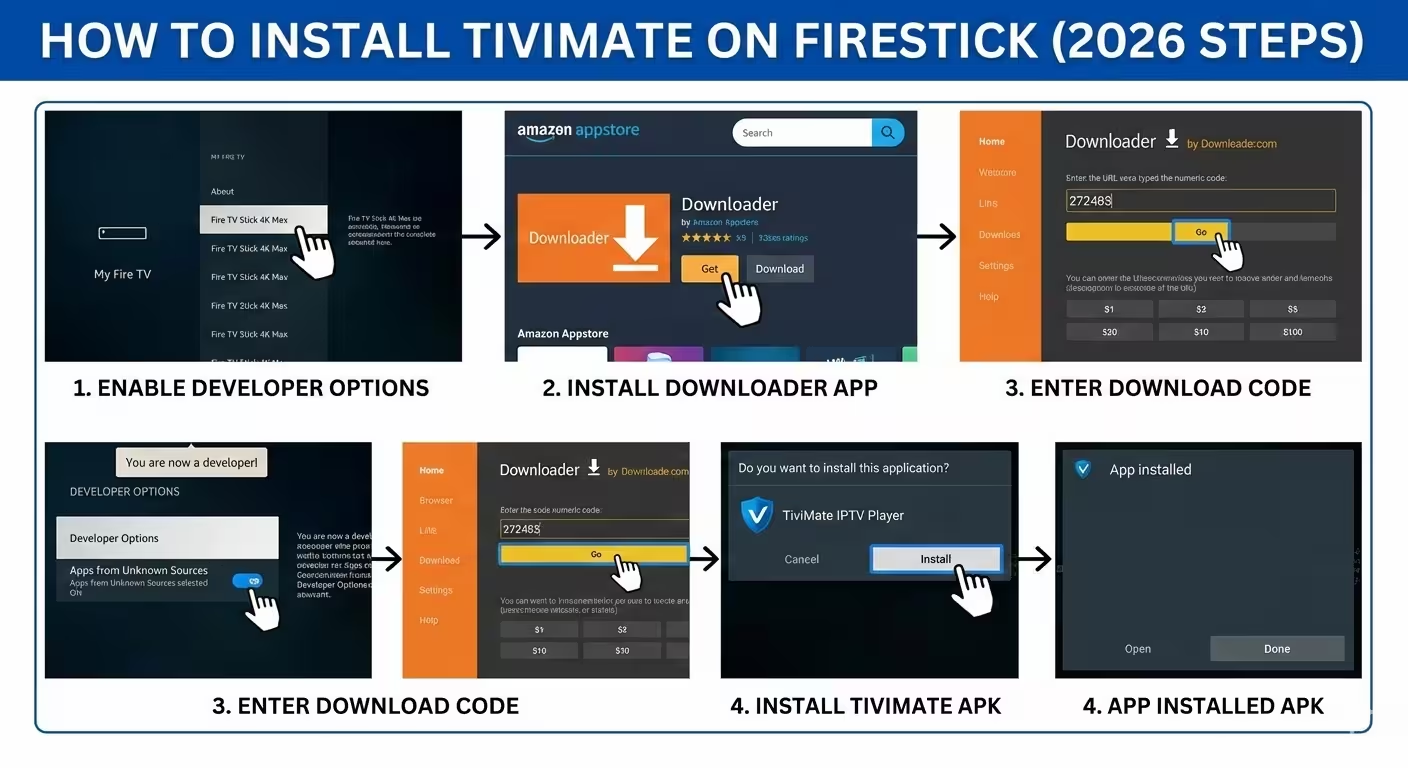
Step 1 — Install an IPTV Player
Your IPTV subscription gives you access credentials, but you still need a player app to actually load and watch the content. There are several solid options, and the right one depends on your preferences around interface, EPG (program guide) style, and customization:
- IPTV Smarters Pro — one of the most widely used players, simple interface, supports Xtream Codes and M3U
- TiviMate — popular for its polished, TV-friendly interface and advanced EPG features
- XCIPTV — a solid alternative with flexible playlist and catch-up support
None of these is a universal “best” choice — try one and switch if it doesn’t fit how you like to browse content. You can install most of these directly from the Amazon Appstore on your Firestick, or sideload them using the Downloader app if they’re not listed there.
Step 2 — Enter Your IPTV Credentials
Once your player app is installed, open it and enter the login details provided with your subscription. Most IPTV players support two connection methods:
- Xtream Codes API — you’ll enter a server URL, username, and password
- M3U Playlist URL — a single link that loads your full channel and content list
Example layout (using placeholder values — enter your own actual details from your subscription):
Server URL: http://example-server.com:8080
Username: your-username
Password: your-password
or simply:
M3U URL: http://example-server.com/playlist.m3u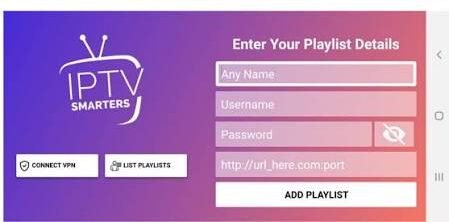
Step 3 — Configure the Player
Once connected, take a few minutes to set up the player the way you want:
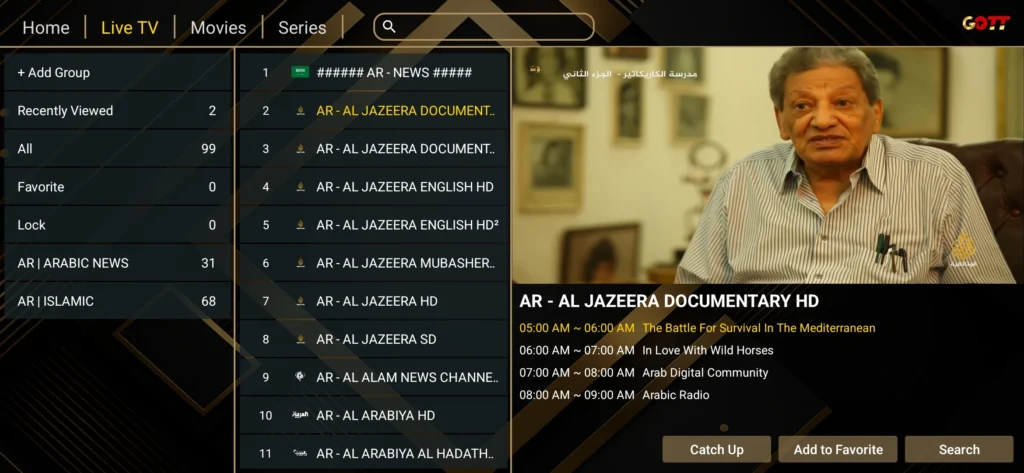
- EPG (Electronic Program Guide) — load the guide so you can see what’s currently airing and what’s coming up
- Favorites — mark your most-watched channels for quick access
- Categories — organize channels by type (Sports, News, Movies, Kids, etc.)
- Video quality — adjust streaming quality settings to match your internet speed
- Subtitles — enable or configure subtitle preferences if needed
Common Problems and Solutions
| Problem | Solution |
|---|---|
| Buffering | Check your internet speed; switch to a wired connection if possible |
| Login failed | Double-check your credentials for typos; confirm your subscription is active |
| No channels showing | Refresh or reload the playlist in your player’s settings |
| App crashes | Update the app to the latest version, or reinstall it |
Best Internet Speed for IPTV on Firestick
For a quick reference: SD needs around 10 Mbps, HD around 20 Mbps, and 4K streaming 50 Mbps or higher. For the full breakdown of speed requirements and how they affect streaming quality, see our What Is IPTV? guide.
A Quick Note on Legality
As with IPTV in general, using a player app on Firestick is completely legal — it’s simply software. What matters is whether your specific IPTV provider has the proper rights to the content they distribute, which varies by service and by country. Choose a provider that’s transparent about their service and offers real customer support.
Frequently Asked Questions
Can I use IPTV on any Firestick model? Yes, IPTV player apps work on all current Firestick and Fire TV models, though newer models with more RAM tend to run smoother, especially with EPG-heavy apps like TiviMate.
Which IPTV player works best? There’s no single “best” app for everyone — IPTV Smarters Pro, TiviMate, and XCIPTV are all solid, reliable choices, and the right pick usually comes down to which interface and EPG style you prefer.
Do I need a VPN? Not always, but many users add one for extra privacy and to help avoid ISP throttling during streaming.
Can I use IPTV on multiple Firesticks? This depends on your subscription plan — some allow multiple simultaneous connections across devices, while others limit you to one active stream at a time. Check your plan details before setting up a second device.
Conclusion
Setting up IPTV on a Firestick is a quick process: install a player app, enter your credentials, configure your preferences, and you’re ready to stream. If you run into issues, the troubleshooting table above covers the most common fixes.
Ready to enjoy premium IPTV on your Firestick? Explore our subscription plans or start your free trial today. Have questions? Check our FAQ or contact us.
One Response